ABOUT
DONATE
Enrolled
PARENTS
Enrolled
STAFF
Enrolled
BOYS
Enrolled
GIRLS
Blackboard Tutorials
Home
>>
Teachers Website
>>
Tutorials
>>
Blackboard Tutorials TEXT
Audio and Video
Accessibility
Application Sharing
Breakout Rooms
Chat
Connection Speed
File Transfer
Hot Keys
Multimedia Library
Notes
Participants Panel
Polling
Quiz Manager
Recorder
Timer
Web Tour
Whiteboard
Modes
Video Tutorials
Clear Java Cache
Wistia Student
Blackboard Tutorials
Screen Recording
Screen Recording
How to create a recording of your screen using BB FlashBack Express:
Download the program
here
.
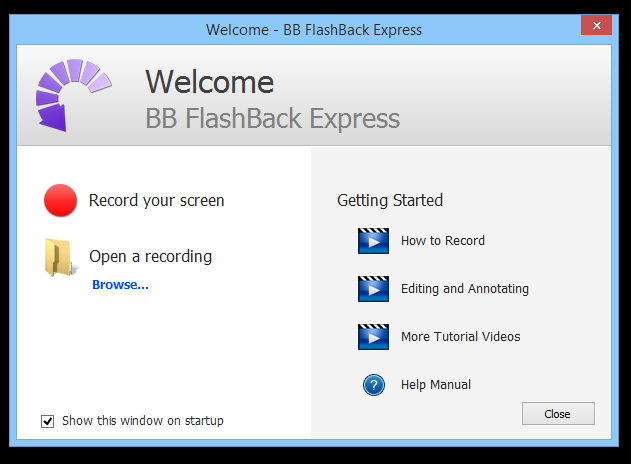
Open the program.
Press
Record your screen
.
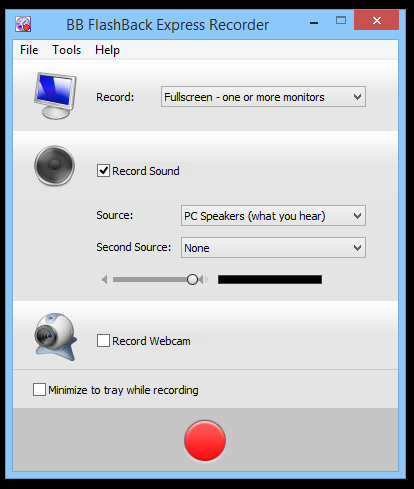
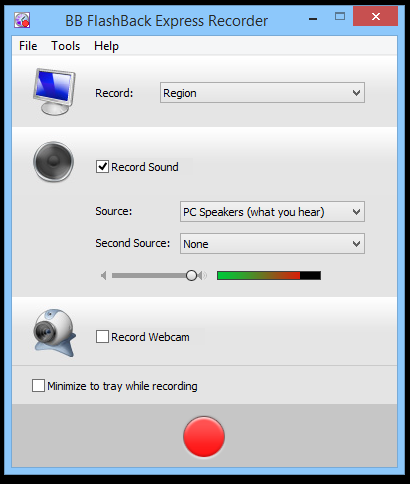
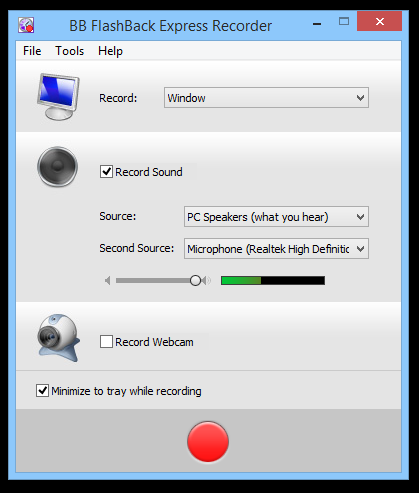
Choose to record
Full Screen, Window,
or a
Region
. Select
Region
to record just a part of the screen.
Choose whether to record sound and which source(s) you wish to record.
Press the Red Circle at the bottom to begin recording.
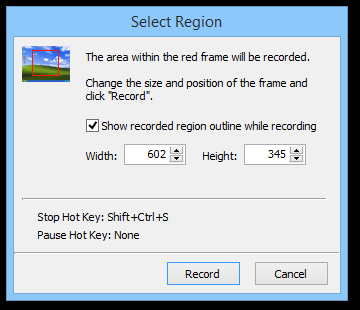
Choose the region of the screen you wish to record and then press
Record
.
When you are finishing recording, press
Ctrl+Shift+S
to stop recording.
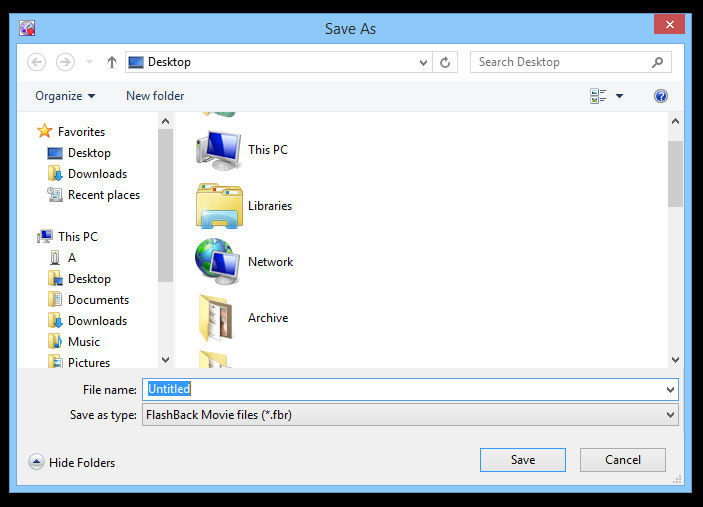
At the prompt choose where to save the recording.
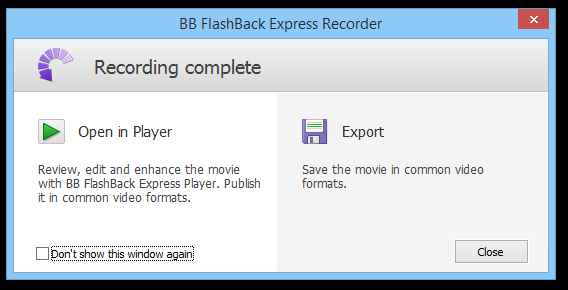
At the following screen, choose
Export.
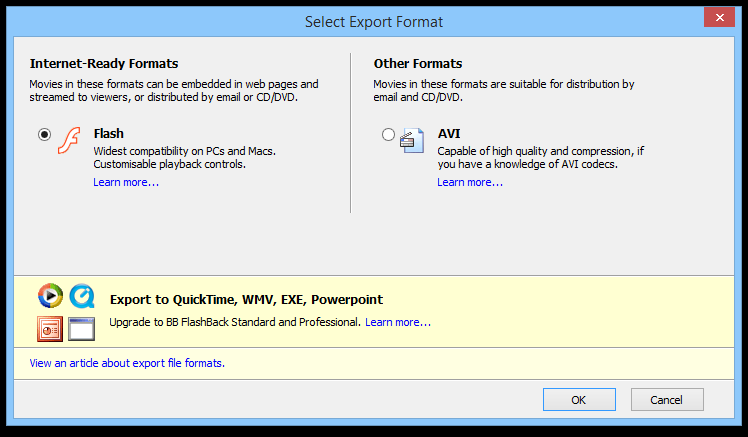
Select
AVI
as the Export Format and press
OK.
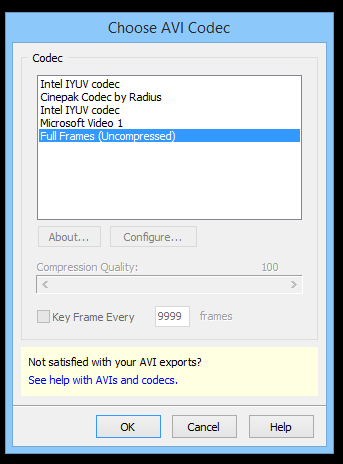
Select
Full Frames (Uncompressed)
and press
OK
. (This step only needs to be done the first time. It will save your preferences for the future.)
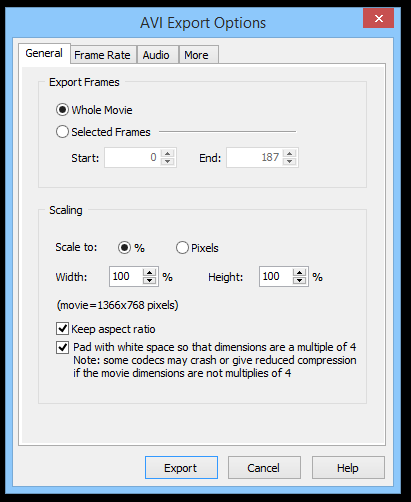
Press
Export
.
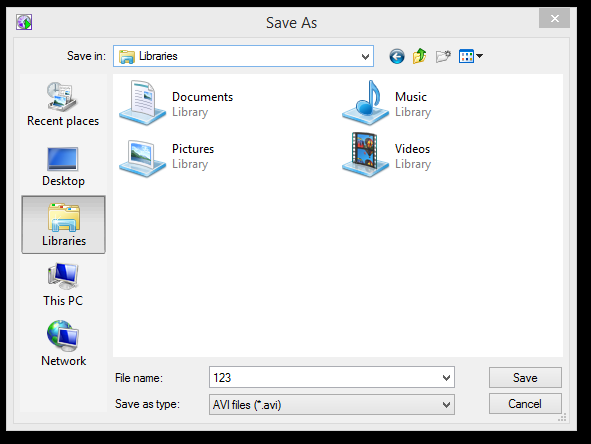
Choose where you would like to save the recording.








 Blackboard Tutorials